How to Fix a Face an AI Upscaler Changed
The upscale is sharp and the picture looks better, but one face is smeared, or it is no longer the person you know. You do not have to choose between a sharp picture and the right face. Here are four ways out, cheapest first.
By Rubber Raccoon, the studio behind Unmush · Updated 13 October 2026
1. Upscale again with less invention
Most AI upscalers have one setting for how much the AI may make up and one for how closely it must follow your photo. Turn the first down and the second up. In Magnific these are Creativity and Resemblance, in Krea Strength and Resemblance, in Leonardo Creativity Strength and Similarity, in Topaz Gigapixel the Creativity level of the Redefine model.
The price is a softer picture overall, because the same setting applies to the whole image. The exact settings are in Upscaler settings that keep faces.
2. Use the upscaler's faithful mode for people
Several tools have a mode meant for photos of real things. Magnific's documentation describes its Precision mode as the one for faithful scaling of photos, products and print, and its Creative mode as the one for AI-enhanced detail. For Topaz Gigapixel, the release notes recommend Creativity 1 for most photos and say that levels of 3 or higher are only recommended for AI-generated images.
3. Paste the original face back by hand
If you use an image editor with layers, you can do the repair yourself:
- Enlarge your original photo to the size of the upscale with a plain, non-AI resize.
- Put it on a layer under the upscaled picture and line the two up.
- Erase the upscaled face softly with a mask, so the real face shows through.
You get the right person, but softer than the rest of the picture, and the edge between the two is hard to hide. For one face it is a quarter of an hour. For a wedding group it is an evening.
4. Repair only the faces
This is what Unmush is built for. You keep the upscale you like and give Unmush two files: your original photo and the upscaled one. It finds every face, compares the two versions, rebuilds the faces that were smeared or replaced from the real face in your original, and checks each result against it. Faces the upscaler got right are left as they are and cost nothing.

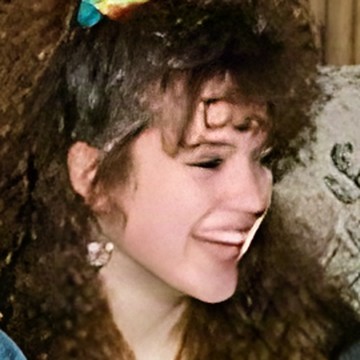
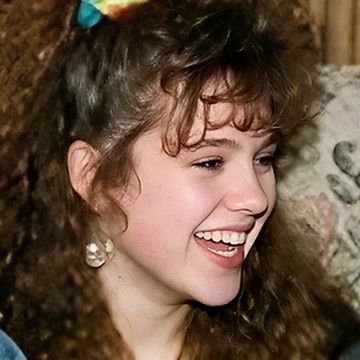
A smeared face. The upscaler sharpened the hair and lost the face. The people in our sample photos are generated with AI.
Which way for which case
| Your situation | Try first |
|---|---|
| One portrait, the face fills much of the frame | Way 1 or 2. Large faces survive faithful settings well. |
| You like the upscale except for the faces | Way 4. The rest of the picture stays as it is. |
| A group photo with many small faces | Way 4, or way 3 if it is only one face. See upscaling group photos. |
| The face is only a few pixels wide in the original | Nobody can rebuild it truthfully. Keep it soft rather than sharp and wrong. |
Unmush repairs the faces after any upscaler. You give it your original photo and the upscaled file. It rebuilds each damaged face from the real face in your original, checks the result against it, and leaves faces alone that the upscaler got right. As with any AI repair, a perfect likeness cannot be guaranteed, so every face has its own rerun and can be kept as it was.
One credit repairs a photo with up to 4 faces. A new account starts with 3 free credits.
Sources
- Magnific, Image Upscaler documentation, read on 13 October 2026
- Topaz Labs, Gigapixel v8.0.0 release notes, read on 13 October 2026
- Krea, Enhancer documentation, read on 13 October 2026
- Leonardo.Ai, Universal Upscaler documentation, read on 13 October 2026