How to Upscale a Group Photo Without Losing the Small Faces
A portrait gives an upscaler a face of several hundred pixels to work from. A class photo gives it thirty faces of forty pixels each. That is where AI upscalers smear faces or swap them for strangers, and where a careful order of work pays off.
By Rubber Raccoon, the studio behind Unmush · Updated 13 October 2026
Start from the best original you have
- Use the original file, not a copy that went through a messaging app or a social network. Those are shrunk and compressed hard.
- Scan prints at 600 dpi or more, small prints at 1,200 dpi. Every pixel you capture is a pixel the upscaler does not have to invent.
- Do not crop first. Upscale the whole photo and crop afterwards.
Measure the faces before you choose settings
Open the original and look at how wide the faces are in pixels.
| Face width in the original | What to expect |
|---|---|
| Over 150 pixels | Most upscalers keep the person at moderate settings. |
| 40 to 150 pixels | The risky range. Creative settings often change the person; faithful settings keep them but soft. |
| Under 40 pixels | Very little to work from. Expect smearing or invention from any upscaler. |
Upscale with faithful settings
For a group of real people, choose the mode or settings meant for photographs and keep the creative dial low. What these are called in Magnific, Topaz Gigapixel, Krea and Leonardo is listed in Upscaler settings that keep faces.
If the picture needs the stronger, creative upscale to look good, use it, and plan to repair the faces afterwards.
Check every face, row by row
Go through the result at full size, one face at a time, with the original beside it. In a group the upscaler rarely fails everywhere. It is usually the back row, the people at the edge, and anyone turned away or partly hidden. A person who knows the group will spot a stranger faster than you will.

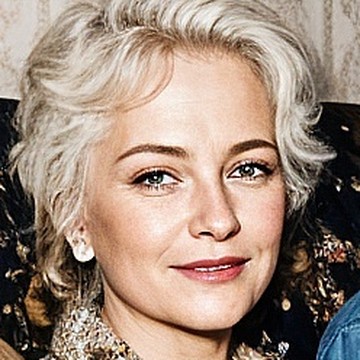
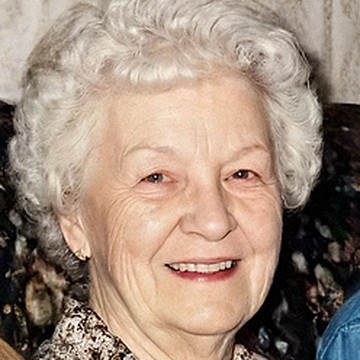
One face from a family photo. The upscaled version looks fine until you compare it with the original. The people in our sample photos are generated with AI.
Repair the faces that went wrong
Unmush takes the original and the upscaled file, finds every face, and shows them in a list with a before and after for each. It rebuilds the faces that were smeared or replaced from the real face in your original and leaves the rest alone. You can rerun a single face, add other photos of the same person as a reference, or take a face out of the list.
One credit covers up to 4 faces, so a group of 20 costs 5 credits. Faces that needed no repair, and repairs that fail our own check, are free.
Know the limit
A face that is only a few pixels wide in the original cannot be brought back truthfully by any tool, ours included. A soft, honest face is better than a sharp, invented one, especially in a photo of people who matter to someone.
Unmush repairs the faces after any upscaler. You give it your original photo and the upscaled file. It rebuilds each damaged face from the real face in your original, checks the result against it, and leaves faces alone that the upscaler got right. As with any AI repair, a perfect likeness cannot be guaranteed, so every face has its own rerun and can be kept as it was.
One credit repairs a photo with up to 4 faces. A new account starts with 3 free credits.