Why AI Upscalers Change Faces, and How to Tell
An AI upscaler does not find detail that was hidden in your photo. It makes up detail that looks plausible. On a wall or a lawn nobody notices. On a small face, the made-up detail can be a different person.
By Rubber Raccoon, the studio behind Unmush · Updated 13 October 2026
What the upscaler really does
A photo that is 800 pixels wide holds a fixed amount of information. Making it 3,200 pixels wide needs fifteen new pixels for every one that exists. Older enlargers filled them in by blending neighbours, which gives a soft picture. AI upscalers fill them in with texture they learned from millions of other pictures.
The makers say so themselves. Krea's documentation describes its Enhancer as reconstructing "what a sharper, higher-resolution version of an image might look like" and calls it "a creative tool, not a forensic one". Magnific's documentation describes its Creativity setting as how much the AI can reimagine details.
Why faces suffer most
We read faces more exactly than anything else. A brick that is slightly wrong is still a brick. An eye that sits two pixels lower, a mouth that is a little wider, a jaw that is a little slimmer: that is somebody else.
A face in a group photo may be 40 pixels wide in your original. That is too little for the upscaler to know who it is, so it draws a believable face of the same age, sex and pose. The smaller the face, the more it has to invent.
Two ways it goes wrong
- The face is smeared. Eyes and mouth melt into a smooth, waxy surface. This is typical of enlargers that sharpen without generating, when the face is very small.
- The face is replaced. The result is sharp and lifelike, but it is a different person: often younger, smoother, with glasses or wrinkles gone. This is typical of generative upscalers at creative settings.

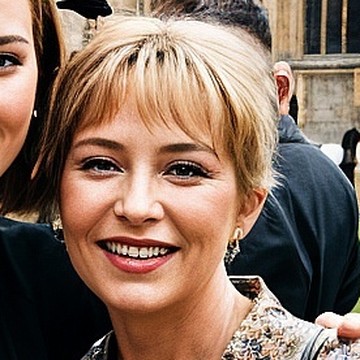
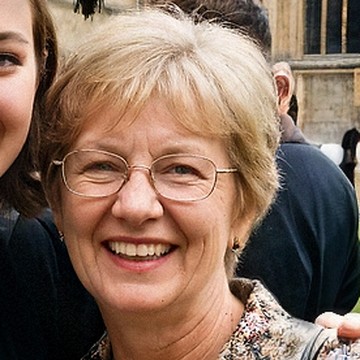
A replaced face. The upscaled face is sharp and believable, and it is not her. The people in our sample photos are generated with AI.
How to tell before you print or post
- Put the original next to the result at the same size. Enlarge the original crudely to the same pixel size and flip between the two. Do not judge the result alone: an invented face looks perfectly fine by itself.
- Check what does not change in a person: glasses, moles, the shape of the hairline, the gap between the eyes, the teeth.
- Check the age. Generative upscalers tend to smooth skin, which takes years off a face.
- Check every face, not only the main one. The smallest faces at the edge of a group are changed most.
- Ask someone who knows the person. A stranger cannot see that a stranger has appeared.
What you can do about it
You can lower the creative settings of your upscaler and accept a softer result, or repair only the faces afterwards. Both are described in How to fix a face an AI upscaler changed and Upscaler settings that keep faces.
Unmush repairs the faces after any upscaler. You give it your original photo and the upscaled file. It rebuilds each damaged face from the real face in your original, checks the result against it, and leaves faces alone that the upscaler got right. As with any AI repair, a perfect likeness cannot be guaranteed, so every face has its own rerun and can be kept as it was.
One credit repairs a photo with up to 4 faces. A new account starts with 3 free credits.
Sources
- Krea, Enhancer documentation, read on 13 October 2026
- Magnific, Image Upscaler documentation, read on 13 October 2026